2017年5月29日 星期一

漢語拼音


我的中文打字是從大易開始。當時大易是熱門的輸入法,和倉頡並列為最快的專業輸入法。大易和倉頡都是字根輸入法,有別於注音的拼音輸入法。

字根輸入法 pro:  不用選字,速度快。con: 必須記得所有字根。

拼音輸入法 pro: 只要記得發音,不需要記任何字型字根。con: 同音字很多。需要選字自然速度就慢。

不過風水輪流轉,拼音結合自動選字選詞,可以大幅加速輸入法的速度。

甚至只要打聲母就可以選詞。加上手機大多只支持拼音輸入法。


台灣最普遍的拼音就是注音輸入法,不用學就可用。不過我想挑戰自己。看老狗是否能學新把戲-漢語拼音。加上重新 refresh 注音。另外以後也可以看懂漢語拼音。

這篇文章就是用漢語拼音打成。


Step 1: 設定漢語拼音輸入法,但用繁體字型。

在Windows  裡其實已有內建漢語拼音輸入法,只要稍微變更下設定,便能輸出繁體中文字,不用再安裝其他的漢語拼音輸入法。

請參考本文。


Step 2: 最重要就是以下注音和漢語拼音對照表!!!!

https://hiraku.tw/2011/10/2784/

NewImage 

一xx => i xx

X xx => u xx

U xx => u xx

2017年5月7日 星期日

Google Cloud Platform GCP - Tensorflow Hello


本文介紹如何在 GCP install Anaconda and Tensorflow.  就我而言是最簡單的方式。

Step0: Create a VM (choose OS: Debian 8 或 Ubuntu TLS 14.04).  請參考前文。

Step1:  Install Anaconda

Reference: 

https://haroldsoh.com/2016/04/28/set-up-anaconda-ipython-tensorflow-julia-on-a-google-compute-engine-vm/

> mkdir downloads

> cd downloads

> wget http://repo.continuum.io/archive/Anaconda3-4.3.1-Linux-x86_64.sh

> bash Anaconda3-4.3.1-Linux-x86_64.sh

> source ~/.bashrc


2017/8/13 update

Anaconda update to 4.4.0 version


Step2: Install Tensorflow

Reference:

https://www.tensorflow.org/install/install_linux#InstallingAnaconda

Anaconda install Tensorflow 非常容易也非常快 (because of GCP?) !

>  conda create -n tensorflow

> source activate tensorflow

再來是 install python tensorflow packages.  先 check python version: 3.6.0

(Tensorflow)$ > pip install --ignore-installed --upgrade \ https://storage.googleapis.com/tensorflow/linux/cpu/tensorflow-1.1.0-cp36-cp36m-linux_x86_64.whl


2017/8/13 update

Tensorflow update to 1.2.1 version


下一步是確認 tensorflow 是否 ok.

Run python

>>>import tensorflow as tf
>>> hello = tf.constant('Hello, TensorFlow!')
>>> sess = tf.Session()
>>>print(sess.run(hello))


Step3: Do a linear regression

參考以下 tutorial.

https://www.tensorflow.org/get_started/get_started

import numpy as np
import tensorflow as tf

# Model parameters
W
= tf.Variable([.3], tf.float32)
b
= tf.Variable([-.3], tf.float32)
# Model input and output
x
= tf.placeholder(tf.float32)
linear_model
= W * x + b
y
= tf.placeholder(tf.float32)
# loss
loss
= tf.reduce_sum(tf.square(linear_model - y))# sum of the squares
# optimizer
optimizer
= tf.train.GradientDescentOptimizer(0.01)
train
= optimizer.minimize(loss)
# training data
x_train
=[1,2,3,4]
y_train
=[0,-1,-2,-3]
# training loop
init
= tf.global_variables_initializer()
sess
= tf.Session()
sess
.run(init)# reset values to wrong
for i in range(1000):
  sess
.run(train,{x:x_train, y:y_train})

# evaluate training accuracy
curr_W
, curr_b, curr_loss  = sess.run([W, b, loss],{x:x_train, y:y_train})
print("W: %s b: %s loss: %s"%(curr_W, curr_b, curr_loss))


2017年5月5日 星期五

Google Cloud Platform GCP - Tutorial


Google Cloud Platform 的 Quickstarts 蠻有參考價值。

https://cloud.google.com/getting-started/#ten-min-tutorial-section


Step1: Create a VM instance running Debian 8 OS

Step2: Install Apache(2) server and put /var/www/html/index.html

Step3: Try compute engine, 其實就是 step 1 + use python for a simple http server.

Step4: Try to run github sample code.  I pick the Python Flask Skeleton for Google App Engine


(a) pip use apt-get (Debian) or yum (centos or redhat)

   > sudo apt-get install python-pip

(b) install google cloud SDK 包含 gcloud, gsutil, bq, etc. command-line tools.  

How?   可以參考 https://cloud.google.com/sdk/downloads

Download sdk.

Run install.sh

Initialize SDK:  > sudo gcloud init

不過應該有更容易的方法 install Cloud SDK, to be checked.


(c) install App Engine Python SDK:  How : > sudo gcloud components install app-engine-python

(d) > sudo gcloud components install app-engine-python-extras


接下來就是參考 git 的 tutorial

https://github.com/GoogleCloudPlatform/appengine-flask-skeleton

> sudo apt-get install git

> sudo  git clone https://github.com/GoogleCloudPlatform/appengine-flask-skeleton.git 

> cd appengine-flask-skeleton

> sudo pip install -r requirements.txt -t lib

不過 python 仍然有問題。這是 python 最麻煩的地方。要解決 packages 之間的相容性問題。一般需要 pip, virtualenv, etc.  請參考前文用 anaconda 解決 pip, virtualenv, 和相容性問題。

我找到一個很好的 blog.

https://haroldsoh.com/2016/04/28/set-up-anaconda-ipython-tensorflow-julia-on-a-google-compute-engine-vm/


Finally I made one work in “google Interactive Tutorial” 中的 “my-instance” VM.

I install anaconda2 and anaconda3, and tensor flow on anaconda3. 


2017年5月1日 星期一

Google Cloud Platform for Machine Learning


之前在 linux (including using Raspberry pi) 作了一些 Machine Learning (ML) 的試驗。用了 OpenCV, Caffe. 

自從 Google promote TensorFlow 之後。一直想再試一試。之前都是想用電競的主機或 notebook.  考慮價格高同時設定比較麻煩。因此開始留意幾家 cloud service providers. 

包含 Google (Google Cloud Platform - GCP), Amazon (AWS), Ali (阿里雲), Microsoft (Azure).

最後選用 GCP 主要是 (1) TensorFlow 就是 Google 提供,相容性應該最好。 (2) 有 300 hour free trial.


I checked on the web, following the following link on Udacity example


Step 1. 

Register in Google Cloud Platform -- easy if you have google account already.  

Create a project : My First Project (default)

NewImage


Step 2: Click on the "Activate Google Cloud Shell" on the top right button.


Step 3: in the shell window

List machine types:

> gcloud compute machine-types list


Step 4: Create an instance (VM?)

> gcloud compute instances create tf  --image container-vm  --zone asia-east1-c  --machine-type n1-standard-2

=> tf is the name of the VM?  (image container)  The container-vm is deprecate.  

=> asia-east1 can change to europe or us-west or us-east

=> n1 type computer and 2 CPUs


Step 5:  copy a tensor flow example from Udacity

sudo docker run -d -p 8888:8888 --name tf b.gcr.io/tensorflow-udacity/assignments:0.5.0


Step 6: Find the instance in the dashboard and edit default network


NewImage

NewImage


Too hard to get it works.


Finally I made one work in “google Interactive Tutorial” 中的 “my-instance” VM.

I install anaconda2 and anaconda3, and tensor flow on anaconda3. 


Back to wordpress first.   參考梅問題教學網

以下是 wordpress 的 ip address and paswd.


NewImage

NewImage


Finally I found the "Getting Started with Google Cloud Platform"

2016年11月7日 星期一

不用現代代數的 Galois Theory

現代代數在解釋 Galois Theory 大多是用 field/group 的 automorphism 和  homomorphism 解釋。

雖然簡潔優美,但缺乏直覺。其實 Galois 本身的思路是比較直覺容易理解。

前文提到結城浩的數學女孩就是 follow Galois 思路。雖然寫得很好,不過還是有些避重就輕。

雖然有解釋 Galois 的思路,但嚴謹度缺乏而顯得破碎。另一方面是缺少有分量的範例。

數學女孩大多用二次式來解釋。間或有三次以及四次的一些推論,但沒有札實的例子。


偏偏二次式是非常簡單的 case.  很難直觀推論到三次, 四次, 或五次方程式。

下文則是非常好的介紹文:  Galois theory without abstract algebra.  也是同樣用 Galois 原來的思路。

同時輔佐實際的 2, 3, 4, 5 次式例子。即使五次式沒有通解。但 F20 group 仍存在根式解。


首先定義有理多項式(方程式)的根式解。如下:

A, B, C, D, 以及 a, b, c, .. 都是有理數。這是所謂的根式解。
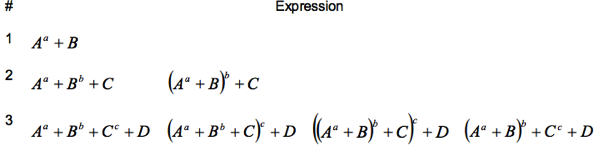
NewImage

二次式 x^2 + 2bx + c = 0 的根式解就是 1.  A = b2 - c;  B = -b;  a = 1/2

三次式的根式解就是 2. 或是 2. 的 linear combination.

依此類推。

前文有提過上述根式解的數,都可以找到對應有理係數多項式的根。因此稱為代數數。

代數數的定義就是有理係數多項式的根。但並非所有代數數都可以


再來是定義 elementary symmetric polynomial

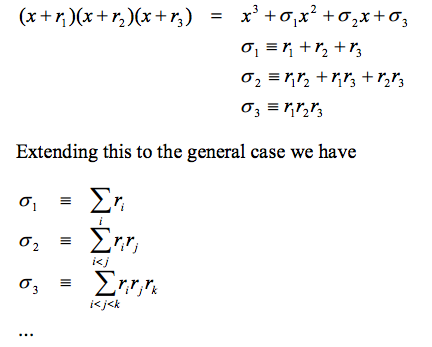
Elementary symmetric polynomial 就是把 (x+r1)(x+r2)(x+r3) ... (x+rn) 展開,根據 xi  項歸類所得的係數。

For example:

(x+r1)(x+r2) = x2 + σ1 x + σ2   where σ1 = r1 + r2 ;  σ2 = r1 * r2 

對於高次多項式:
NewImage
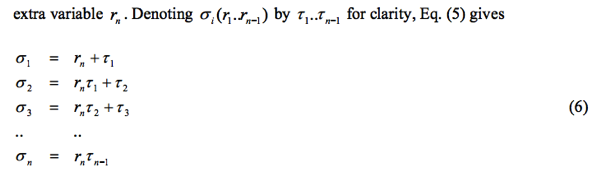
同時如果定義 
NewImage
 

注意以上的公式適用於所有實數和複數,並無有理數的限制。

我們有興趣的 case 是有理數係數的多項式。當然根可能是或非有理數。但上述公式告訴我們。

根的 "基本對稱多項式" 如 σi 是有理數!  這是很直接但非常重要的觀察結果。


這個推論 (有理係數多項式的根所構成的基本對稱對項式是有理數) 能 extend 多遠?  

相當遠!  可以証明任意有理對稱多項式滿足 Sn permutation invariant 結果都是有理數。同時可以表示為 σi 的有理式!

是用數學歸納法証明。


n=1 :  σ1 = r1 ∈ Q.  任意有理(對稱)多項式 f(r1) = f(σ1) ∈ Q.   明顯成立。


假設 n-1 成立:

i.e. 任何有理多項式  f(r1, r2, ..., rn-1) = g(σ1, σ2, ..., σn-1)  where f(r1, r2, ..., rn-1) is invariant under Sn-1 permutation


Prove n: for any rational symmetry polynomial f(r1, r2, ..., rn-1, rn) satisfy Sn permutation invariant. 

First set rn = 0. 

f(r1, r2, ..., rn-1, rn) = f(r1, r2, ..., rn-1, 0)  當然仍然滿足 Sn-1 permutation invariant. 

By n-1 assumption,  f(r1, r2, ..., rn-1, rn=0) = f(r1, r2, ..., rn-1, 0) = g(σ1, σ2, ..., σn-1, σn=0)  from (6)

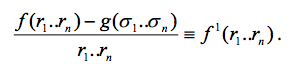
=>  [f(r1, r2, ..., rn-1, rn) - g(σ1, σ2, ..., σn-1, σn)]rn=0 = 0  也就是 rn 是一個根。同理 r1, r2, ..., rn-1 都是根。
NewImage

Clearly,  f 1(r1, r2, ..., rn-1, rn) is invariant under Sn permutation.  同時比原來的 f 更低階。

我們可以重覆這個 operation.  一直到 f k(r1, r2, ..., rn-1, rn) = g(σ1, σ2, ..., σn-1, σn)


In summary

任意有理對稱多項式滿足 Sn permutation invariant 結果都是有理數。

同時可以表示為 σi (基本對稱多項式)的有理式!


Galois Group

Maximum group of roots permutation invariant under any function.  The result is a known function of polynomial coefficients.


Example:

二次式 (roots: r1, r2):

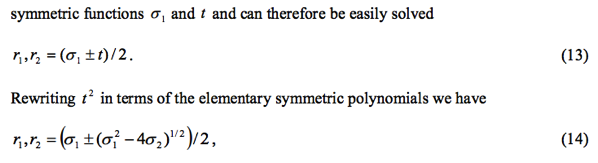
σ1 = r1 + r2  ,    t2 = (r1 - r2)2  ∈ Q    σ1 and t ∈ S2.  t 開根號後可以計算 r1 and r2.
NewImage

結果就是一開始的根式解。

至於 Galois group:

S2=C2=Z2 ⊳ E   (The quotient group is Z2)


三次式 (roots: r1, r2, r3):

NewImage 

where α2 = ω, α3 = ω*ω

t1^3 is permutation invariant under A3.  t2^3 is also permutation invariant under A3.

但是 t1^3+t2^3 and t1^3*t2^3 則是 permutation invariant under S3.   

=> t1^3+t2^3, t1^3*t2^3 ∈ Q  =>  可以解出 t1 and t2 first. 

=> 再由 t1 and t2 解出 r1, r2, and r3 by (15).

如何找 t1^3 and t2^3?  就是展開上式利用根和係數得到 t1^3+t2^3 and t1^3*t2^3


S3 ⊳ A3=C3=Z3 ⊳ E   (The quotient group is Z2, and Z3, respectively)


四次式:


S4(24) ⊳ A4(12) ⊳ D2(4)=V4(4)=C2xC2 ⊳ C2=Z2(2) ⊳ E   (The quotient group is Z2, Z3, Z2, and Z2 respectively)

同樣可以先解出

NewImage 

如同三次式的 t1^3 and t2^3!  當然 θ1 and θ2 滿足 A4 permutation invariant.

所以 θ1+θ2 和 (θ1-θ2)^2 滿足 S4 permuation invariant. 


下一步就是要找到對應的 θ1 and θ2, 必須滿足 A4 permutation invariant. 


(t1 + ω t2 + ω^2 t3)^3 = θ1    

(t2 + ω t1 + ω^2 t3)^3 = θ2

(t1 + ω t3 + ω^2 t2)^3 = θ3  same as θ2, useless

t1 + t2 + t3 =?

看來只有 A3 permutation invariant? 

但 t1, t2, and t3 不是四次式的根。而是三次式的根。不過是什麼三次式的根?

答案是 it depends:


如果定義 (a)

t1 = (r1+r2)(r3+r4)

t2 = (r1+r3)(r2+r4)  

t3 = (r1+r4)(r2+r3)

可以得出一個三次式。


也可以定義 (b)

t1 = r1*r2 + r3*r4

t2 = r1*r3 + r2*r4  

t3 = r1*r4 + r2*r3

可以得出另一個三次式。


或是定義 (c)

t1 = [(r1-r2)(r3-r4)]^2

t2 = [(r1-r3)(r2-r4)]^2  

t3 = [(r1-r4)(r2-r3)]^2

可以得出另一個三次式。


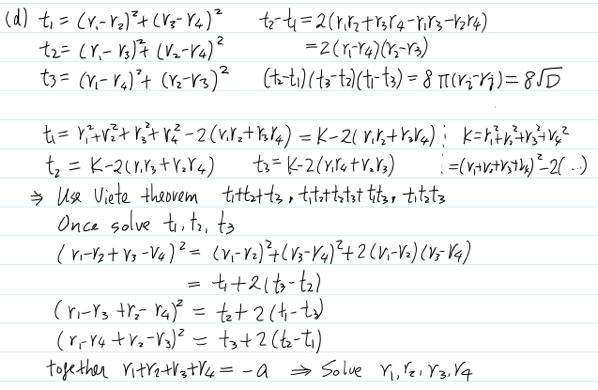
或是定義 (d)

t1 = (r1-r2)^2 + (r3-r4)^2 = (r1-r2+ i r3 - i r4)*(r1-r2- i r3 + i r4) = (r1+ i*r3 -r2 - i*r4)(r1+ i*r4 -r2 - i*r3)

t2 = (r1-r3)^2 + (r2-r4)^2 = (r1-r3+ i r2 - i r4)*(r1-r3- i r2 + i r4) = (r1+ i*r2 -r3 - i*r4)(r1+ i*r4 -r3 - i*r2)

t3 = (r1-r4)^2 + (r2-r3)^2 = (r1-r4+ i r2 - i r3)*(r1-r4- i r2 + i r3) = (r1+ i*r2 -r4 - i*r3)(r1+ i*r3 -r4 - i*r2)


可以得出另一個三次式。


共同的特點 t1, t2, t3 都滿足 V8 (8) permutation invariant.  Total 8*3 = 24 permutation 構成 S4 permutation invariant for t1+t2+t3, t1*t2+t2*t3+t3*t1, and t1*t2*t3.

藉著 S4 permutation invariant 代表三次方程式的係數都可由四次方程式的係數表示。

最常用的是 (a).  可以參考本文 for 三次式的 coefficient. 


如果是 (d), 可以定義類似四次分圓根 (1,i,-1,-i) 的關係。

z1  = r1 + i r2 - r3 - i r4

z1' = r1 + i r4 - r3 - i r2 

z2  = r3 + i r2 - r1 - i r4

z2' = r3 + i r4 - r1 - i r2

z3  = r2 + i r1 - r4 - i r3

z3' = r2 + i r3 - r4 - i r1 

z4  = r4 + i r1 - r2 - i r3

z4' = r4 + i r3 - r2 - i r1

z1*z1' = z2*z2' = z3*z3' = z4*z4' = t1

同樣可以定義 t2 and t3.


t1+t2+t3 = (r1-r2)^2 + (r2-r3)^2 + (r3-r4)^2 + (r1-r3)^2 + (r1-r4)^2 + (r2-r4)^2

= 3*(r1+r2+r3+r4)^2 - 8*(r1r2+r1r3+r1r4+r2r3+r2r4+r3r4)

t1*t2+t2*t3+t1*t3 and t1*t2*t3 就要再計算。此處忽略。


先以 (a) 定義的三次多項式來看。

首先三次多項式的 D 和四次多項式的 D 是一致。其實 (a),(b),(c),(d) 都一致。

另外就是三次多項是否是 reducible?  也就是是否有有理根。

t1 = (r1+r2)(r3+r4) 

r1+r2+r3+r4 = -a    --- (1)

=> (r1+r2 - r3 - r4)^2 = a^2 - 4*t1

r1 + r2 - r3 - r4 = +/-sqrt(a^2 - 4*t1)   --- (2)

r1 + r3 - r2 - r4 = +/-sqrt(a^2 - 4*t2)   --- (3)

r1 + r4 - r2 - r3 = +/-sqrt(a^2 - 4*t3)   --- (4)


From (1) to (4), we can solve r1, r2, r3, r4 unknowns.

也可以先解: r1+r2, r3+r4, r1+r3, r2+r4, r1+r4, r2+r3

從 r1+r2 只要有 r1-r2 就可解 r1, r2.   r1-r2 = (r1+r3) - (r2+r3)

最後可解 r1, r2, r3, r4. 


所以順序上是先解 θ1 and θ2.  ( S4(24) ⊳ A4(12) )

再解 t1, t2, t3.  ( A4(12) ⊳ V4(4)  or S4(24) ⊳ V8(8) )

再解 r1+r2, r1+r3, r1+r4, r2+r3, r2+r4, r3+r4 ( V8(8) ⊳ C2(2) )

最後再解 C2(2) ⊳ E


-a3 = (r1+r2)+(r3+r4)

d1 = r1+r2 - (r3+r4)         (12)(34)

d2 = (r1+r3) - (r2+r4)

d3 = (r1+r4) - (r2+r3)


(a3^2 - d1^2)/4  =  (r1+r2)(r3+r4) = t1

(a3^2 - d2^2)/4  =  (r1+r3)(r2+r4) = t2

(a3^2 - d3^2)/4  =  (r1+r4)(r2+r3) = t3


實務上先做出一個三次方程預解式,使用 t1, t2, t3 為根。

 NewImage


NewImage 


NewImage


2016年10月29日 星期六

Mac-mini 使用 USB3.0 external SSD 加速

原來想換一台新的 Mac, 像是 iMac 或是新的 touch ID Macbook Pro.  不過實在太貴了。

只好再把 2012 Late Mac-mini upgrade.  之前把 2GB + 2GB DRAM 換成 2GB + 8GB = 10GB DRAM.

不過還是有彩球。想想可能是 5400-rpm hard drive (500GB) 太慢。


也研究過把內建的 500GB hard drive 直接換成 SSD.  看了一些 YouTube 影片,覺得還是有風險。

萬一過程中手抖把 connector 弄壞,就得不償失。所以還是先用 USB3.0-to-SATA III 外接盒。之後所果有必要再改成內建。


本文是用 USB3.0 to SATA 外部 SSD.  好處是不用把 Mac-mini 開膛剖腹,避免風險。

壞處就是 USB3.0 外接 SSD performance 還是有一些差異。

SATA II 速度的上限是 3Gb/s (W/R ~ 275/285MB/sec, about 76% throughput)  

SATA III 速度的上限是 6Gb/s (W/R ~ 520/550MB/sec, about 73% throughput).  

USB3.0 速度的上限是 5Gb/s, 如果有支援 UASP (Usb Attached Scsi Protocol).  可以達到 W/R ~ 480/500MB/sec, about 80% throughput.  基本上已經非常接近 embedded SATA III SSD performance.


Step 1: SSD and USB3.0 to SATA III 外接盒

我買了 Micron Crucial MX300 SSD, 275GB.  查了一下是用 Micron TLC 3D NAND flash.  雖然比不上 MLC (更不提 SLC) 的強壯,但便宜 (2200) 加上大廠應該還是有保障。

外接盒是用台廠 AKiTio 的 Neutrino U3 hard drive enclosure, 轉換 USB3.0 to SATA III.

要注意 外接盒的 USB3.0 必須支援 UASP protocol 才能達到最高的 file transfer 速度 (400MB/s)!!

AKiTiio 是用 Asmedia 2105 IC.


Step 2: 設定 SSD and 外接盒

第一步先 format SSD to OS X Extended with GUID map scheme 如下:

https://www.akitio.com/information-center/formatting-external-hard-drives


NewImage

再來就是 download AJA 

https://www.aja.com/products/aja-system-test

確認 USB3.0 外接 SSD performance 可以達到 W/R > 400MB/sec!!

 NewImage


比較之下,原來 Mac-mini 500GB 5400rpm 的 HD 速度如下:

TBA


Step 3:  使用 carbon copy cloner (CCCloner) 把所有的檔案 copy to SSD. 同時 make SSD bootable.  

可以參考:

http://macintoshhowto.com/hardware/how-to-speed-up-your-mac-with-a-ssd-drive.html

其中有幾點我有不同的意見。主要的差異是參考文是用 embedded SSD (內部 SATA interface) 而我是用外部 USB3.0 轉 SATA III SSD.

1. Step 4: 為了要省 SSD 的 capacity, 該文只 copy system and applications folders to SSD.  但 users folders 都還留在 mac-mini 原來的 5400 rpm HD.   原來我也用相同的作法。不過發現最後 AJA performance 變得非常差,只有 30MB/sec (如下圖)。因此改成把所有 users folders 都 copy 到 SSD.  確認如此 performance 可以達到 4xx MB/sec. 

2. Step 4: CCCloner 的 interface 似乎有改變。Step 6: 改 user folder 可以忽略,因為 users folder 都 copy 到 SSD.

3. Step 7: Enable TRIM.  首先要看 SSD 是否有支援 TRIM.  如果 SSD 沒支援 TRIM 就無法使用。更重要的是 USB3.0 外接 SSD 沒有支援 TRIM.  所以可以跳過 step 7. 


唯一的問題是 SSD (275GB) 小於 hard drive (500GB).  如果 SSD 夠大。是可以考慮 copy 所有 data.  

如果無法 copy 所有 user data,  可以只讓 SSD 變成 boot disk 而非所有 users data disk.  不果只限於內建 SATAIII SSD.  如果是外接 SSD.  結果很不理想如下。


在第一次實驗。基本上 follow 該文。只把 SSD 變成 boot disk (見下一步), users folder 還是放在 mac-mini 原來的 5400rpm HD, 再做 AJA 測試。Performance 就大幅下降。尚不清楚為什麼???

可能是因為做為 boot disk 會有大幅的 system data in and out of SSD, 造成 video file transfer 大幅下降?

還是有其它因素?  但是開機速度的確有大幅改善。

NewImage 


因此重新修改的方式就是儘量 copy 所有 data (system, applications, and users) to external SSD.  除了移掉 picture folder 以減少 SSD size.

SSD 只有 273GB.  HD 有 319GB.  需要少 50GB!

NewImage

不過 photo 就有 300GB!!  Lots of redundancy!!  Need to clean later.

NewImage


Step 4: Make SSD default booting disk

Under System Preferences click Startup Drive select the SSD Drive, then restart! 

在用 external SSD boot 之後,第一個明顯的感覺是 boot 速度變快了。在白蘋果出現, white bar 變化的前 10-15 秒其實速度很慢和之前一樣,應該是 on-board bias (flash) 在開機。但在 white bar 中後段開始 load from HD, 速度突然一飛沖天。整體的加速很明顯。

再用 AJA run SSD 的 W/R 速度仍有 4xx MB/sec.  

NewImage


用 AJA run Mac-mini 5400rpm HD 的 W/R 速度如下: 也有 9X MB/SEC!!

似乎也有大幅的進步。或許是 SSD 仍然有幫到 cache or program file/system file 的加速?

NewImage


Step 5: Wha’s working and not working

Need to fix: 

* Microsoft Office not working properly because it requires to key or 365 subscription

* Dropbox need to re-login and re-set it’s path

* Google drive need to re-start it’s path

Working: 

* Browser (Chrome and Safari) work fine

* Printer works properly

* Blogger tool works fine


2016年9月11日 星期日

Group Theory 應用 - 方程式

從上次的 Group Theory - 我的經驗 之後。很少花時間在 group, 因此又忘的差不多。

這次看了結城浩的數學女孩 x 伽羅瓦理論,非常驚艷於其中非常清楚而且淺顯的內容介紹 group theory.  如何從解方程式 (2, 3, 4, 5 次元) 體 (field) 的問題,轉化為 group 問題。以及 Gaolois 的論文清楚解說。Bonus 是順便解釋 Greek 作圖的三等分角問題。

本文摘錄其中的重點。

追蹤者